
How to crop, rotate or straighten a photo
Three different problems end up looking similar until you're the one trying to fix them. A photo that's on its side needs rotating. One with a slightly tilted horizon needs straightening. One where only part of the frame matters needs cropping. Here's the difference, and how to do each one in your browser.
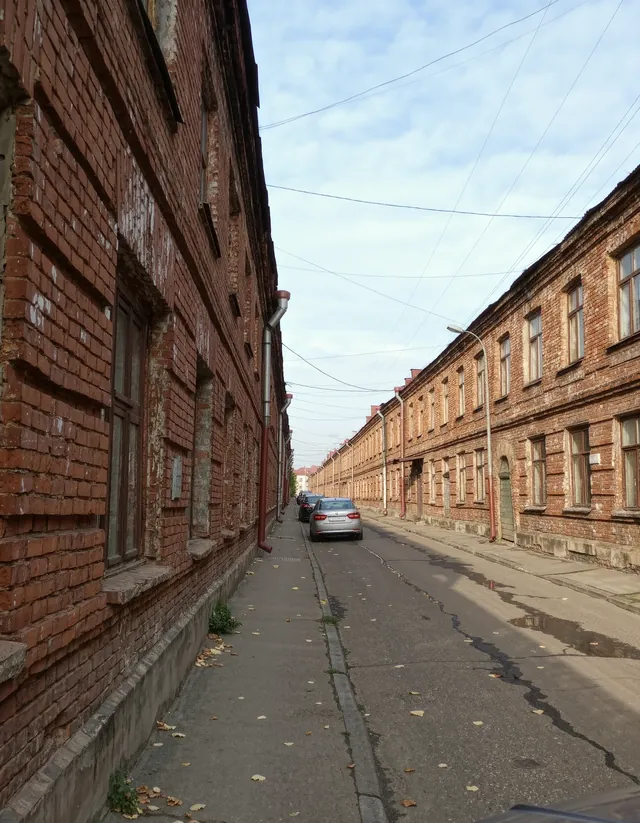
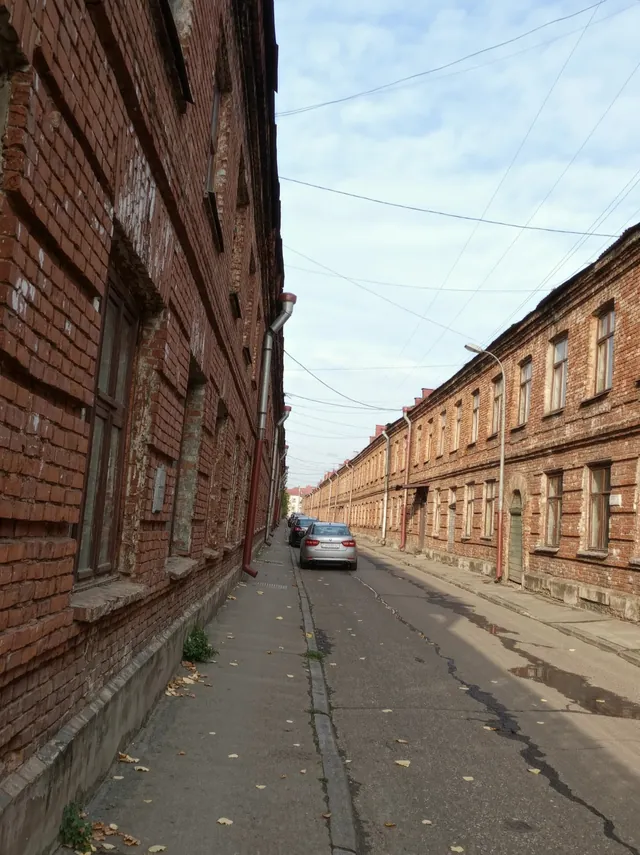
Three problems that get confused for each other
A sideways photo, usually one taken with the phone held the wrong way and saved before the orientation caught up, needs a plain 90, 180 or 270 degree turn. Nothing about the content is wrong, it just needs rotating back into place.
A crooked horizon is a different problem, the photo is basically the right way up, but a boat, a shoreline or a building leans a few degrees off level. That needs a small-angle straighten, not a full rotation.
Cropping is different again: the photo is oriented fine, but only part of the frame is actually wanted, everything outside a certain rectangle needs trimming away. Mixing these up is the most common reason a fix doesn't quite work, straightening a sideways photo with a small-angle slider gets you nowhere.
Rotating a photo that's on its side
Pick 90, 180 or 270 degrees clockwise from the crop, rotate and straighten tool and every photo in the batch turns by exactly that amount. This is a matrix transform on the existing pixels, not a re-render, so there's no quality lost in the process, the same detail just lands in a different arrangement.
Because the same rotation applies to the whole batch, this mode is for photos that share the same problem, a set that all came off the camera the same way sideways. A batch with a mix of orientations needs sorting into separate drops, one rotation setting per group.
Straightening a horizon that's a few degrees off
The straighten slider runs from -45 to 45 degrees. Small movements do the real work here, most crooked horizons are only a couple of degrees out, and the slider is sensitive enough to dial that in without guessing.
Rotating by even a small angle leaves the frame's corners uncovered by the actual photo, since a tilted rectangle no longer lines up with the canvas underneath it. The tool crops those corners away automatically, so what comes out is a clean rectangle with a level horizon, slightly smaller than the original rather than showing transparent triangles at the edges.
Cropping down to the part of the photo that matters
Crop works differently from the other two modes on purpose. Where to crop is something only you can judge for each photo, so instead of one setting applied to a whole batch, you go through photos one at a time: drag a box over the area to keep, mark that photo done, and the tool moves you straight to the next one in the queue.
A photo left with no box drawn on it passes through unchanged rather than failing, so a batch where only some photos actually need cropping still works in a single pass, just draw a box on the ones that need it and skip the rest.
Nothing is uploaded, whichever mode you use
Every photo is decoded, transformed and re-encoded entirely in your browser tab, whichever of the three modes you're using. Disconnect from the internet after the page loads and it still works, because nothing here was ever sent anywhere in the first place.
Quick questions
What's the difference between rotate and straighten?
Rotate turns a photo by a fixed 90, 180 or 270 degrees, for one that's sideways or upside down. Straighten uses a small-angle slider for a horizon that's only a few degrees off level, and crops the edges to compensate.
Does rotating reduce image quality?
No. A 90, 180 or 270 degree rotation only rearranges existing pixels, there's no re-sampling or recompression involved.
Why does straightening make my photo smaller?
Tilting a rectangular photo leaves its corners uncovered by the canvas underneath. Cropping those corners away is the only way to end up with a clean, fully covered rectangle, which is why the output is slightly smaller than the original.
Can I crop a whole batch at once with one setting?
No, by design. Cropping asks you to draw a box on each photo individually, since where to crop is a different decision for every photo, unlike rotate or straighten where one setting suits the whole batch.
What happens if I skip drawing a crop box on a photo?
It's left unchanged and passed through as-is, so a batch with only some photos needing cropping still works in one pass.
Is my photo uploaded to rotate, straighten or crop it?
No. Everything happens in your browser. Disconnect from the internet after the page loads and it still works.
Converters
The converter on this page handles every conversion this guide talks about.